Slide Files
 |
|
Figure 1
Slide File Layout
|
Each image file (*.gif, *.jpg) has a corresponding slide file which contains
information about the image.
The slide file is automatically created for each image file, if it doesn't
already exist.
A slide file is an HTML file which has the same base name as the image file.
Slide files are designed to present the image along with some descriptive text below
the picture, as shown in Figure 1.
Depending on the configuration settings, the image may be dynamically resized when viewed
so that it fits inside the browser window.
Buttons may appear above the image which allow the user to advance to the next or previous
slide, or to return to the index.
Slide files are always be kept in the same directory as their corresponding image files.
If the image file is moved to a different directory, the slide file must be moved along
with it.
One of the advantages to keeping information in slide files (as opposed to a central
database) is that when the image file is moved to a new location, all of its descriptive
information can easily be moved along with it by simply moving its corresponding slide
file.
Slide files contain the following information about their corresponding images:
The Title, Description, Keyword list, and Sort order can be
modified using one of the utilities that are provided to edit slide information easily.
The easiest way to modify this information is to right-click on the image file from
Windows Explorer and then select "HTML File Info" from the context menu.
Text can be added to the slide file in several ways:
- For each image file in a directory, the system looks for a text file with the same
base name as the image file and a ".txt" extension. If a text file is found and the
slide does not already contain text, the contents of the text file is added to the slide
file as preformatted text. The text file is then deleted (optional).
- The user may manually edit the slide file to add preformatted text or text with HTML
formatting. See the section below entitled "Adding Text to Slide Files" for information
on how to add text.
There are several utilities that are provided to edit slide information easily.
Adding Text to Slide Files
Each slide file can have one and only one block of text, which will appear below the
image when it is viewed. The text may be either preformatted or it may use HTML format
tags. It may contain any number of lines. The text block should be added to the end of
the file, immediately before the </BODY> tag.
Preformatted Text
To add a single preformatted text block to a slide file, use the following format:
   <PRE>
      Insert your text here
   </PRE>
Text with HTML Formatting
To add a block of formatted text which may contain HTML format tags, use the following
format:
   <!-- BEGIN TEXT -->
      Insert your text here
   <!-- END TEXT -->
Note: text with HTML formatting may contain multiple preformatted text blocks as part
of the HTML formatting.
Movie Slide Files
 |
|
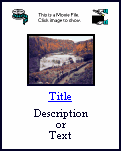
Figure 2
Movie Slide Layout
|
A special kind of slide file is generated for movie files.
Movie slide files contain a heading with two icons and an image, as shown in Figure 2.
When the user clicks on the image, the plug-in movie viewer is invoked.
The image may be a custom "preview" image or a generic movie image.
The image cannot be scaled like static image slide files,
so it should not be too large (usually a frame from the movie).
The following sections specify how the source files for the icons and images are found:
Upper left icon
Look for a file in the icons directory called
"smovie1_ext.gif" or "smovie1_ext.jpg",
where ext is the file name extension of the movie file.
If not found, look for a file in the icons directory called "smovie1.gif" or "smovie1.jpg".
If not found, don't use any icon.
Upper right icon
Look for a file in the icons directory called
"smovie2_ext.gif" or "smovie2_ext.jpg",
where ext is the file name extension of the movie file.
If not found, look for a file in the icons directory called "smovie2.gif" or "smovie2.jpg".
If not found, use the upper left icon (see above).
If not found, don't use any icon.
Center image
Look for a file in the same directory as the movie file called
"basename.gif" or "basename.jpg",
where basename is the base file name (before the extension) of the movie file.
If not found, look for a file in the icons directory called
"smovie_ext.gif" or "smovie_ext.jpg",
where ext is the file name extension of the movie file.
If not found, look for a file in the icons directory called "smovie.gif" or "smovie.jpg".
If not found, use the default text box.
Table of Contents
Copyright © 1996-2003 Christopher P. LaRosa. All Rights Reserved.